
Your clients fill it on their phone. No app, no pinch and zoom.
You don't need to redesign your PDF for small screens. Send it as a link and your clients fill it in their phone's browser: tap a field, type, sign, download. The answers land in your original PDF. No app, no account, no zooming all the way out.
5 min readUpdated


- Keep your PDF as it is. Your clients fill it on their phone, and the answers land in your original PDF.
- It opens in the browser, with no app to install and no account.
- Clients can draw, type or upload a signature.
- If they close the tab, their answers wait on their own device, encrypted.
Why PDFs are hard to fill on a phone
Send a client a PDF form and there's a good chance they'll open it on their phone. The page shows up zoomed all the way out, the print is tiny, and every field means pinching in, typing a few letters, and pinching back out to find the next one. Plenty of clients give up and wait until they can find a computer. Some never get back to it, and you end up chasing them.
The trouble isn't the form, and it isn't your client. A PDF is laid out for a sheet of paper, and a phone screen is a fraction of that size. Something has to give. A common answer is a redesign of the mobile-friendly PDF form: one column, bigger text, fewer fields, a smaller file, then test it on a phone. That's a lot of work for a form you didn't design, and it isn't always possible. An official form has to stay the way it was issued, and even your own intake sheet has a layout people know.
fenfill takes the other route. Of all the fenfill features, this is the one your clients deal with directly. You keep the PDF exactly as it is. What changes is how your client fills it: one section at a time on a phone, with the page you already use one tap away.
Your form, one section at a time
When you send a form from fenfill, your client gets a link. It opens in any modern browser, on a phone too, with no app to install and no account to create. There's no reader to download first and no "open with" menu to get past.
On a small screen, the form opens one section at a time, with large fields sized for a thumb. Your client taps a field and types, with no pinch and zoom to find the box. The full page is one tap away if they want to see it, and every answer lands in your original PDF, exactly where the field is, so what they fill is what you sent.
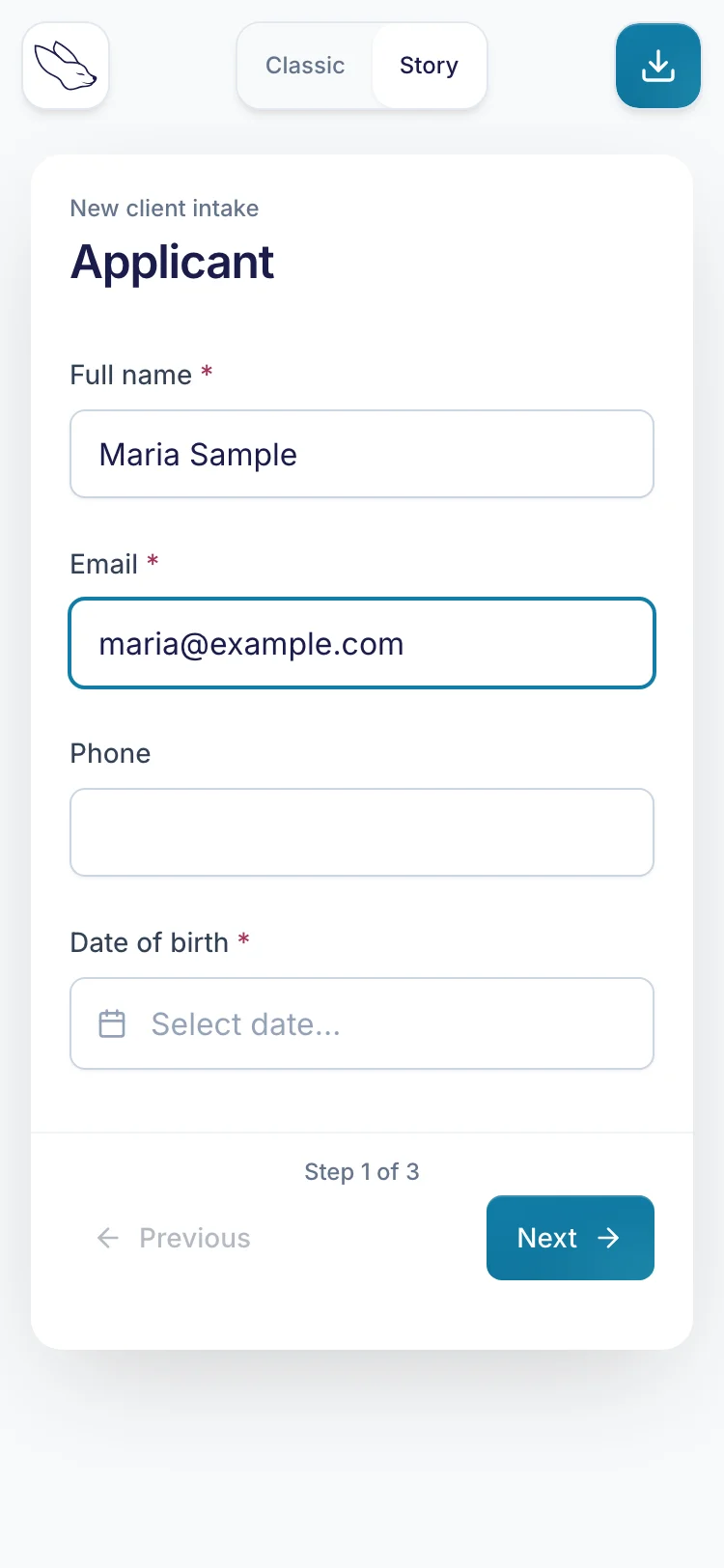
Checkboxes, dates and comb boxes work the same way: tap the field and answer it. Your client doesn't need to know how the form was set up, only what to put in each box.
You don't prepare anything special for phones. The same template works on a desktop and a phone, so you set it up once and send the same link to everyone. If you haven't set one up yet, start by learning how to make your PDF a template.
Before you send it, you can open and fill the template yourself on your own phone. It's the simplest way to see the form the way your clients will.
Signing on a phone
A lot of forms end on a signature line, and that's usually where a phone fill breaks down: print, sign, scan, send back. In fenfill, your client signs on the screen instead.
When they tap a signature field, they can draw their signature with a finger, type their name, or upload a picture of their signature. The signature is placed on the page, in the box you set up. Typing is there for clients who find drawing with a finger awkward, and uploading suits anyone who already has a clean image of their signature.
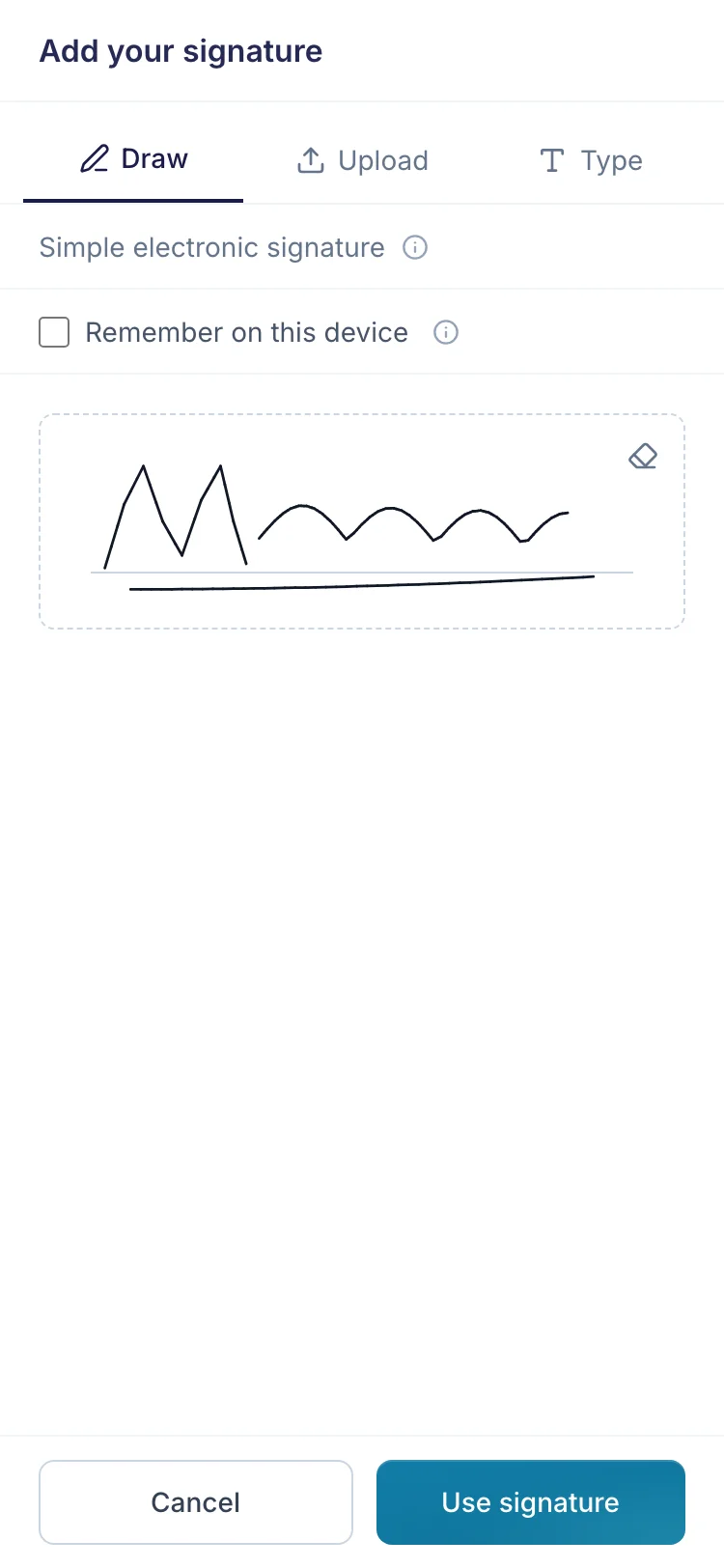
The signature stays on your client's device. It's only remembered if they tick "Remember on this device", and then only for 30 days, so it's there for the next form without being kept anywhere else.
Whatever they choose, it's a simple electronic signature. Some documents and some recipients ask for more than that, so before you send a form that needs one, check what the person receiving it accepts.
If they close the tab halfway
Phones get interrupted. A call comes in, a tab gets closed, the battery runs out. A long form shouldn't have to be started again because of that.
When your client fills one of your templates, or fills a form from their own private link, their answers are saved as they go. They're saved on their own device, encrypted, and nowhere else.
If they come back to the same link on the same device, their answers are waiting. Those saved answers are cleared once they download the finished PDF, or after 30 days of inactivity. Nobody has to press save. Because the answers live only on that device, a client who starts on their phone and switches to a laptop starts again on the laptop.
None of this goes through fenfill. What your client types never reaches our servers: the form is filled and the PDF is stamped in their browser. So none of their answers sit on our side waiting to be deleted when they're done. There's more on how fenfill handles your clients' answers.
Send it as a link
On your side, getting a form onto your clients' phones is the same as sending it anywhere. You set up the PDF once, then share it: a public link that anyone with it can fill, or a private link for each person.
When your client finishes, they download the filled PDF, which is the same document with their answers stamped on and flattened. They send it to you by email, or however they usually send you files, and fenfill shows you they've completed it.
Which link to use depends on who's filling. A public link suits a form anyone can fill, posted on your site or sent to a group. A private link (on Pro and up) suits a form that belongs to one client, and you can revoke it at any time. You can switch a form between the two.
- 1
Set up your PDF once
Upload it and check the fields.
- 2
Send each client a link
They open it on their phone. Nothing to install.
- 3
Get the PDF back
They download the filled PDF and send it to you.
With private links you also see where each client stands: pending, opened or completed. That's the part that saves the most chasing. If a client opened the form on their phone but hasn't completed it, you can see that, and you know exactly who to follow up with. See how sending and collecting works, or how insurance agencies can send the carrier's own supplemental applications for clients to fill on their phones.