
Fill a PDF in your browser, without uploading it
Got one PDF to fill and no wish to send it anywhere? Open it in Quickfill. You place the fields by hand, type your answers and download the finished PDF. The file stays on your device the whole time.
4 min readUpdated

- Your PDF is opened and filled in your browser, and downloaded from there. It's never uploaded.
- No form fields? Draw a rough box with the wand and it snaps to the line.
- No account and no sign-in. Open the PDF and start.
- Sending the same form to clients? Make it a template instead.
Nothing leaves your device
Sometimes you just need to fill one PDF: a lease addendum, a registration form, a one-page application. You'd rather not upload a confidential file to an online service to do it. Quickfill is for exactly that. You fill a PDF without uploading it: the PDF opens in your browser, you fill it there, and you download the finished file from there too.
It suits the forms that land on your desk once and are yours to fill. When nobody else needs to see the PDF, there's no reason for it to leave your computer.
The file is read by your browser, not sent to us. There's no upload step to wait for and no copy of your PDF on our side.
You don't need an account, and there's nothing to sign in to. Open the page, pick your PDF, and start filling.
Because nothing is uploaded, there's nothing to delete afterwards either. When you close the tab, your PDF is exactly where it was: in your own files.
Quickfill is one of the fenfill features that works entirely on your own machine. The rest of fenfill, where you save templates and send them to clients, has its own protections, explained in how fenfill handles your files.
It works on PDFs with no form fields
A lot of PDFs aren't fillable at all. The lines and boxes are printed on the page, and there's nothing for a PDF reader to click into. That's where many browser tools stop: they can fill the fields a PDF already has, or drop loose text on top of the page.
In Quickfill, you place the fields yourself, on any page, with the magic wand. Draw a rough box around a line or a box on the page and the field snaps to it. You don't need to be precise.
A field that sits on the line means your answer sits on the line too, the way it would if you'd written it by hand, instead of hovering somewhere above it. That's the difference between a PDF that looks filled in and one that looks typed over.
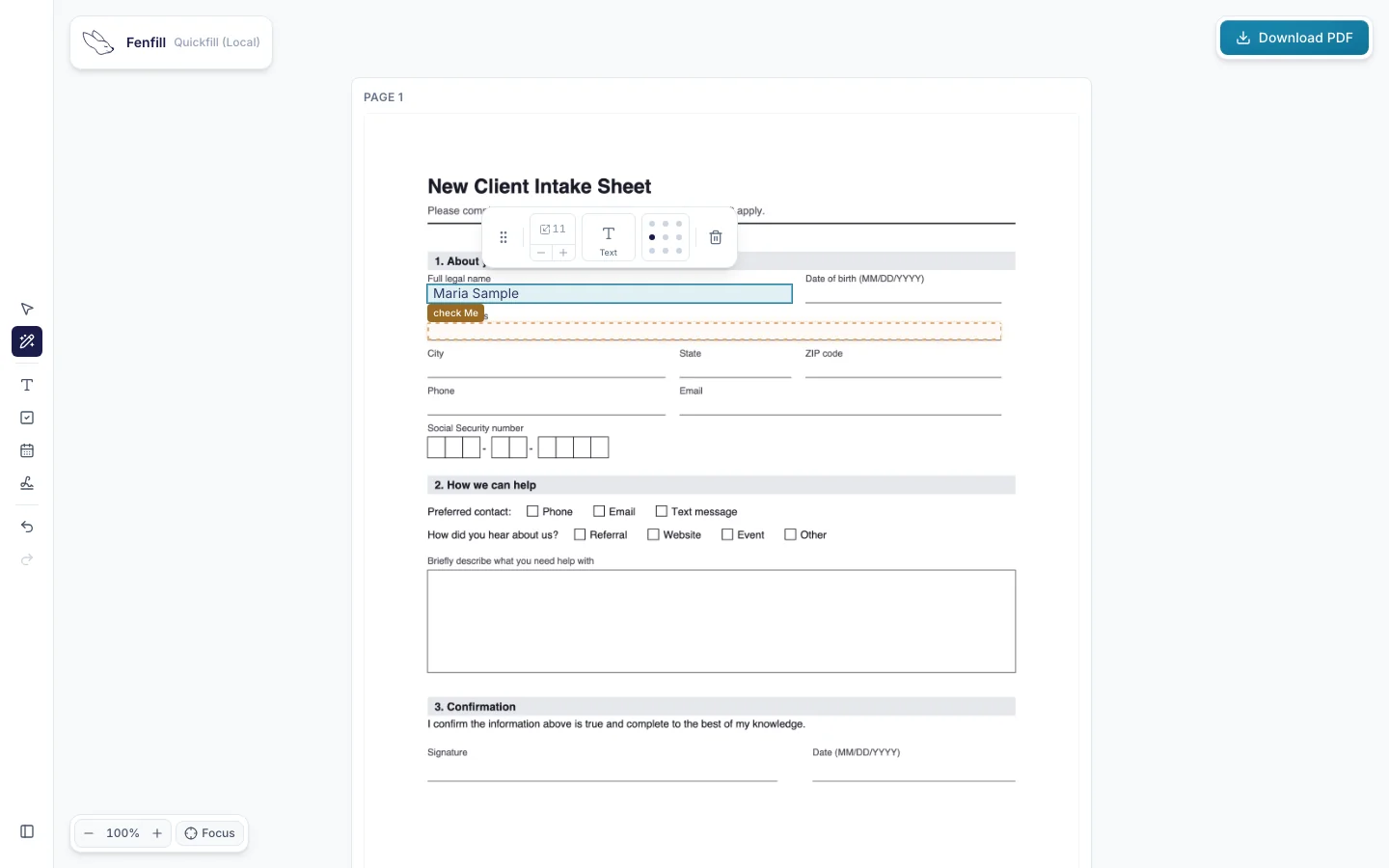
Once a field is on the page, you can change its size and move it until it sits where the answer belongs. Make it wider for a longer answer, or narrower for a short one. If one ends up in the wrong spot, move it or draw it again. Nothing is final until you download.
If your PDF already has fillable fields, Quickfill picks them up, so you can start typing. You only draw the ones that are missing.
Place a field wherever the form expects an answer: a name line, a date box, a row in a table. Place one, fill it, then move on to the next.
How it works
There's no setup and nothing to install. You don't create a template or choose a plan first. The whole job is four steps, all in the same browser tab.
- 1
Open your PDF
Pick it from your files. Nothing is uploaded.
- 2
Place the fields
Draw a rough box with the wand; it snaps to the line.
- 3
Type your answers
Fill it in right on the page.
- 4
Download it
Save the finished PDF to your device.
Your answers go onto the page itself, so the file you download is your PDF with your answers on it. Keep it, print it or send it on, like any other PDF.
The finished PDF is saved to your own device, like any other download. fenfill never gets a copy of it, or of the answers you typed.
Quickfill doesn't save your progress as you go. Plan to fill and download the PDF in one sitting, and keep the tab open until you have the file. If the form is long, gather what you need before you start, like dates, account numbers and reference codes, so you can go from start to finish.
That's the whole job, start to finish. When you're ready, Fill a PDF now.
When a template is the better choice
Quickfill is built for one-off PDFs that you fill yourself. It doesn't keep anything: close the tab and the fields you placed are gone with it. That's the point, and it's also the limit. There's no account, so there's nothing to come back to next time either.
If you'll send the same form to clients, reuse it every time, or want to see who has completed it (with private links, on Pro and up), turn it into a template instead. You set it up once, and each client fills it from a link.
A template also saves you the drawing. On a flat PDF, fenfill finds the fields for you, and you check them and fix any it missed with the wand. Forms that already have fillable fields are read directly, just as Quickfill picks them up.
| Quickfill | Template | |
|---|---|---|
| Your PDF is uploaded | Never | Encrypted in your browser first |
| Fields | Placed by you with the wand | Found for you or placed by hand, then checked |
| Send it to clients | No | Yes |
| Autosave while filling | No | On the filler's device |
| Reuse it | No | Yes |
| fenfill line on the PDF | Always | Not on paid plans |
Your PDF is uploaded
- Quickfill
- Never
- Template
- Encrypted in your browser first
Fields
- Quickfill
- Placed by you with the wand
- Template
- Found for you or placed by hand, then checked
Send it to clients
- Quickfill
- No
- Template
- Yes
Autosave while filling
- Quickfill
- No
- Template
- On the filler's device
Reuse it
- Quickfill
- No
- Template
- Yes
fenfill line on the PDF
- Quickfill
- Always
- Template
- Not on paid plans
The table sums it up. Quickfill keeps everything on your device and forgets it when you're done; a template remembers the form and shares it. A template is what you want when a form keeps coming back, like collecting the same W-9 from every vendor. Your clients fill it on their own device, and what they type never reaches our servers. When they finish, they download the filled PDF and send it to you, and fenfill shows you they've completed it. Here's how to send it to clients.
A template does mean uploading the blank PDF, once. It's encrypted in your browser before it's uploaded, and the answers your clients type still never reach our servers. Quickfill is the one place where even the blank file stays with you.
Templates, private links and the other plan differences are laid out side by side on the pricing page: compare plans.
If today's PDF really is a one-off, stay with Quickfill. You can always set up a template later, the first time the same form comes around again.