
Turn the PDF you already use into a fillable form you can reuse
Upload the form you already use. fenfill finds the fields for you, you adjust anything it missed, and you keep it as a template. Every client then fills that exact page online, and nothing gets rebuilt or retyped.
5 min readUpdated

- Your clients' answers land on your original PDF page, not a rebuilt copy.
- fenfill finds the fields on flat and scanned PDFs (scans may need a few fixes). Forms that already have fillable fields are read directly.
- Draw a rough box with the magic wand and it snaps to the line. You adjust type, size and position in the editor.
- Set it up once and send it as many times as you like.
Start with the form you already use
A lot of PDF forms were made to be printed. The fields aren't fillable, so your clients end up filling them with a pen, or you end up retyping their answers into the right boxes yourself. Either way, someone is copying the same information twice, and a handwritten answer is only as good as the handwriting. Converting the PDF to a fillable form fixes that, as long as the form your client fills is still the one you meant to send.
That's how templates work, and they sit at the center of the fenfill features. You upload the PDF you use today: the current edition you downloaded, or your own intake sheet. You don't rebuild it question by question in a form builder, and nothing about the page changes. Your client sees the same page you uploaded. What they send back is that same page, with their answers on it.
Your blank PDF is encrypted in your browser before it's uploaded. If you want the full picture first, here is how fenfill protects your documents.
- 1
Upload your PDF
The form you already use, as it is.
- 2
Let fenfill find the fields
Run field detection on the pages you choose, or place fields yourself.
- 3
Check and adjust
Fix or add anything with the wand and the editor.
- 4
Save it and send it
Keep it as a template and send it every time you need it.
Only the middle two steps take any work, and you do them once. After that, the template is ready every time you need it.
How fenfill finds the fields
Many forms are flat: the lines and boxes are printed on the page, and nothing in the file says where an answer goes. On flat and scanned PDFs, fenfill uses AI to find the fields, and each one it finds becomes a box your client can fill.
Some PDFs already have fillable fields built in. fenfill reads those directly, and detection doesn't run at all. You start from the fields the form's author made, ready for you to check.
Detection runs only when you choose to run it, and only on the pages you pick. You can skip it and set up a flat form entirely by hand, or run it on one page and place the rest yourself. Either way, you decide what gets set up and when.
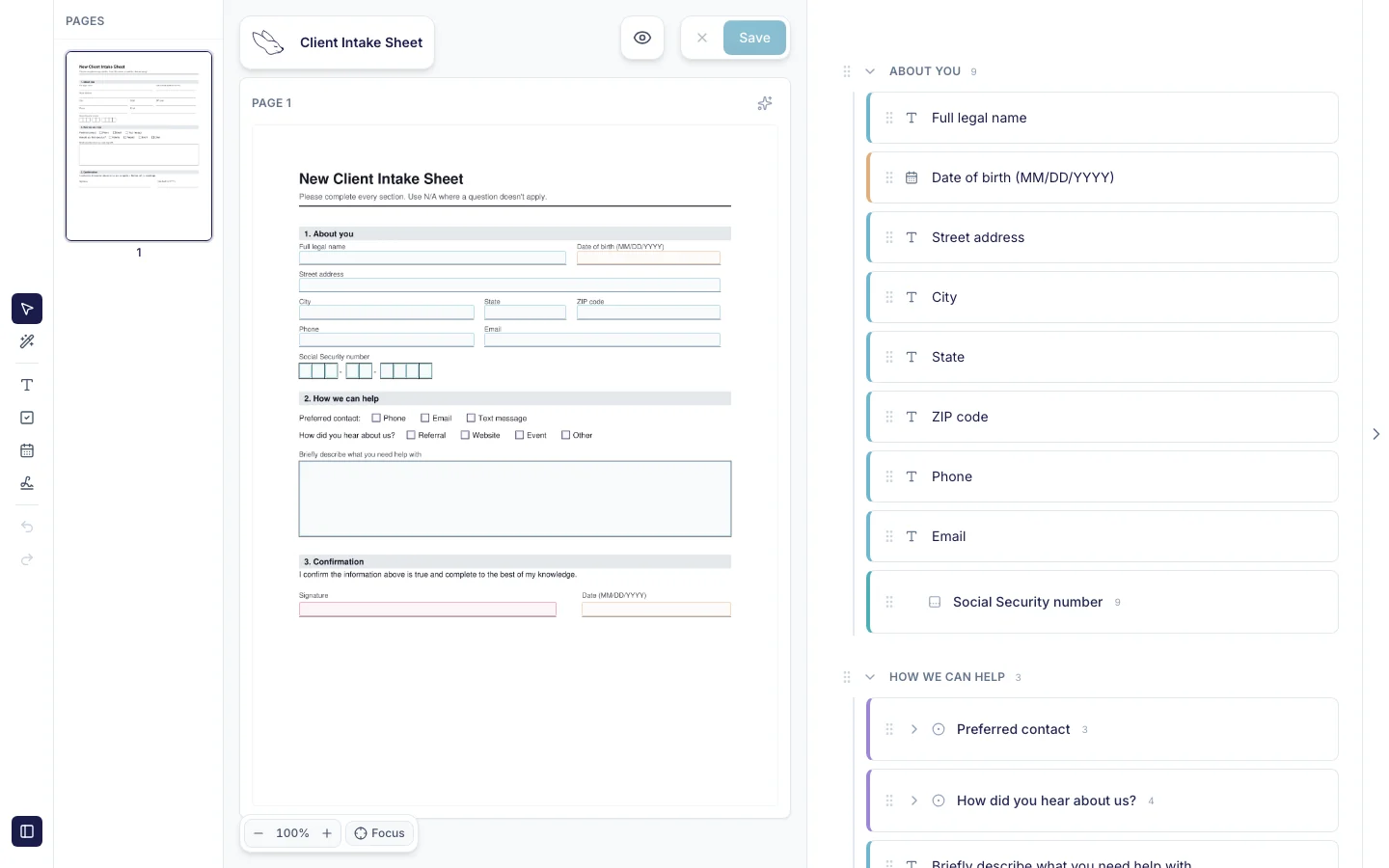
Every field gets a type, and the type decides what your client sees when they tap it. A template can hold:
- text, including multi-line answers
- checkboxes
- dates
- signatures
- comb boxes, one character per box
- choice groups
- tables
Types matter most on official forms. A comb field puts one character in each printed box, so an ID number lines up with the boxes on the page, and a table keeps each row's answers in its own cells.
Detection gives you a head start, but it isn't perfect. That's what the wand is for.
Fix what it missed with the magic wand
If you've tried a desktop PDF editor's automatic field detection, you know the feeling: fields get missed, and placing the rest by hand defeats the purpose. On flat forms, that approach misses fields and leaves the fixing to you.
In fenfill, the fix is simple. Pick the magic wand, draw a rough box around a line or a box on the page, and the field snaps to it. You don't have to be precise.
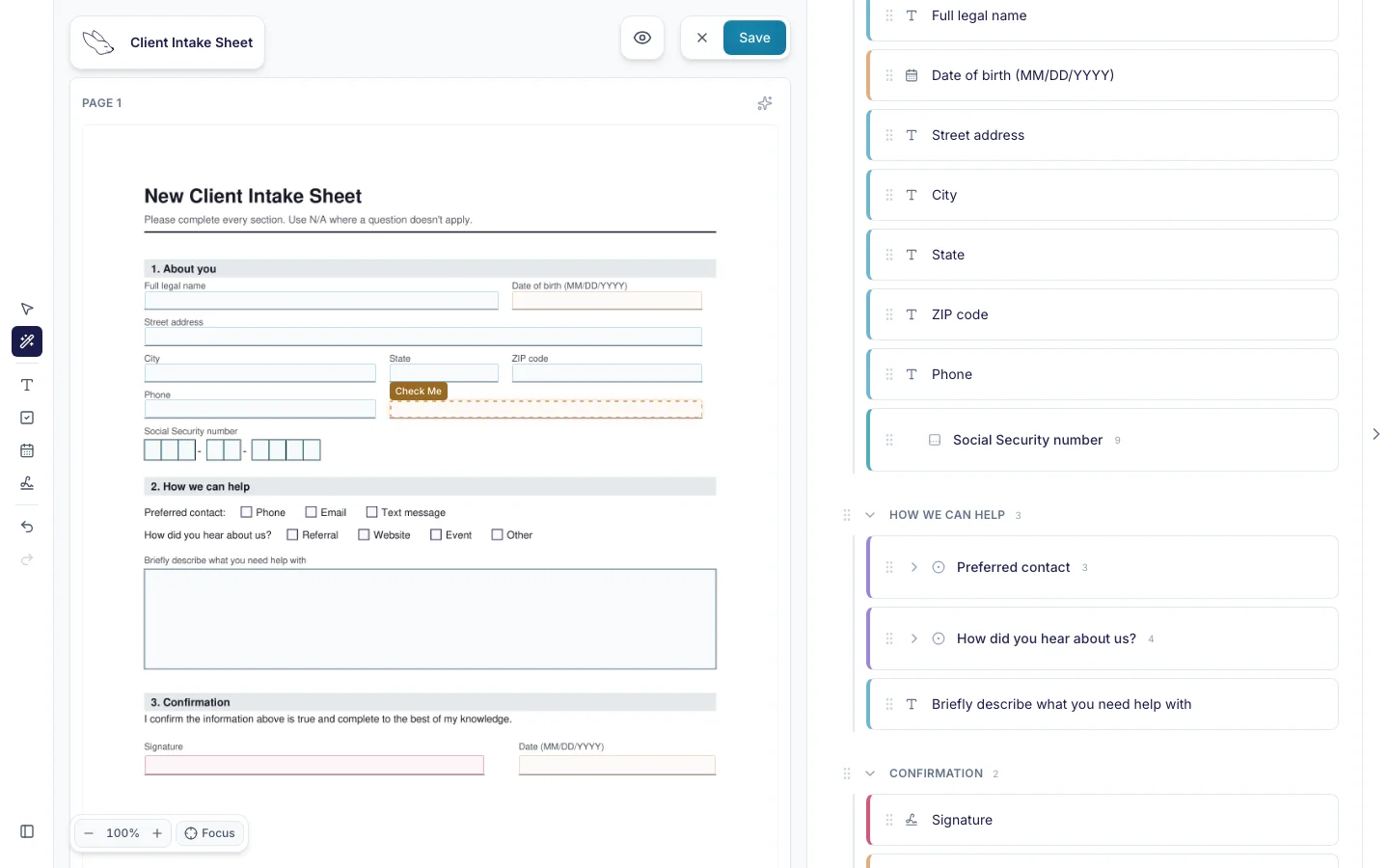
The editor handles everything else. Change a field's type, resize it, or move it, whether fenfill found it or you drew it yourself. A text field that should be a date, or a checkbox that landed a little off, is a small fix.
Treat detection as a first draft and the editor as your review. Go through the page once before you send it, the way you'd proofread a letter, and your client never sees a field in the wrong place. If detection skipped a field entirely, draw it where the answer should go and choose its type. It becomes part of the template like any other field.
Set it up once, send it every time
A fenfill template isn't a one-off conversion you download and forget. You set it up once and keep it, and every client after that gets the same form, already set up. When a form arrives, there's no rebuilding it in a form builder and no redoing the fields.
That's the real difference between the ways a PDF form gets filled online. A form builder gives your client a new web form, not your document. A desktop PDF editor keeps your document but leaves the missing fields to you, and your clients often need a desktop reader to fill it. A template keeps your page and fills in any browser.
| fenfill template | Rebuild it in a form builder | Add fields in a desktop PDF editor | |
|---|---|---|---|
| What your client fills | Your original PDF page | A new web form, not your document | Your PDF |
| Setting up the fields | Found for you; fix any with the wand | Every question re-entered by hand | Auto-detect misses fields on flat forms; fixed by hand |
| Where your client fills it | Any modern browser, on a phone too, no app or account | In the browser | Often a desktop PDF reader |
| What comes back | The same PDF, filled and flattened, sent to you by your client | Answers to the new form, not your PDF | Your PDF, from whatever reader they used |
What your client fills
- fenfill template
- Your original PDF page
- Rebuild it in a form builder
- A new web form, not your document
- Add fields in a desktop PDF editor
- Your PDF
Setting up the fields
- fenfill template
- Found for you; fix any with the wand
- Rebuild it in a form builder
- Every question re-entered by hand
- Add fields in a desktop PDF editor
- Auto-detect misses fields on flat forms; fixed by hand
Where your client fills it
- fenfill template
- Any modern browser, on a phone too, no app or account
- Rebuild it in a form builder
- In the browser
- Add fields in a desktop PDF editor
- Often a desktop PDF reader
What comes back
- fenfill template
- The same PDF, filled and flattened, sent to you by your client
- Rebuild it in a form builder
- Answers to the new form, not your PDF
- Add fields in a desktop PDF editor
- Your PDF, from whatever reader they used
When a client finishes, they download the filled PDF: the same document, with their answers stamped on and flattened. They send it to you by email, or however they usually send you files, and fenfill shows you they've completed it. Your clients don't need an account or an app, and they can fill it in their phone's browser. Here's more on filling on a phone and on how sending and collecting works.
Each template is shared one of two ways. A public link lets anyone who has it open and fill the form. Private links (on Pro and up) give each person their own link, which you can revoke at any time, and show you whether it's pending, opened or completed. You can switch a form between the two.
Immigration practices can use it this way: keep the current edition of a form as a template and send it to each client, instead of retyping the same answers into it again and again.

The next client gets the same form, already set up. So does the one after that.
What it costs to set one up
fenfill plans meter setting forms up, not filling them. Field detection uses page scans: one for each page it reads, and again if you run it on a page a second time. Filling, sharing and downloading never use page scans, however many clients fill the form.
So the cost of a template is paid once, when you set it up. Forms that already have fillable fields skip detection, and a flat form you set up by hand doesn't need it either. Your clients don't need an account to fill anything.
That makes a template worth more the more you use it. A form you send to every new client costs the same to set up whether ten people fill it or a hundred.
To send a form to one client at a time, with a private link for each person and a status for each link, you'll need Pro or a higher plan. The limits and prices for each plan are on one page: see the plans.